Integrating Webflow Forms with Google Sheets Using Zapier
This guide provides step-by-step instructions on how to integrate Webflow forms into Google Sheets using Zapier. Follow the steps below to streamline your data collection process.
Prerequisites
- A Zapier account (we use
Fullystudios@gmail.com) - Access to your Webflow account
- Access to your Google Sheets account
Getting Started
Step 1: Choose a Zap Template
-
Log in to Zapier and select a suitable template for your integration.

Step 2: Set Up the Webflow Trigger
-
Log in to Webflow from within Zapier.
-
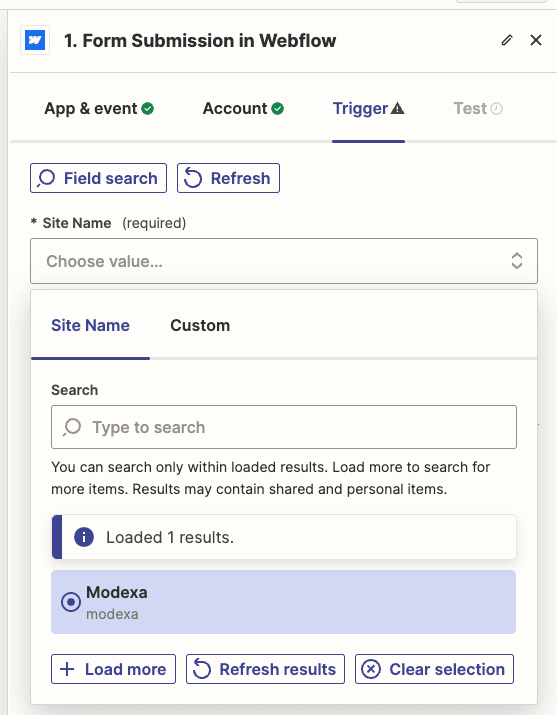
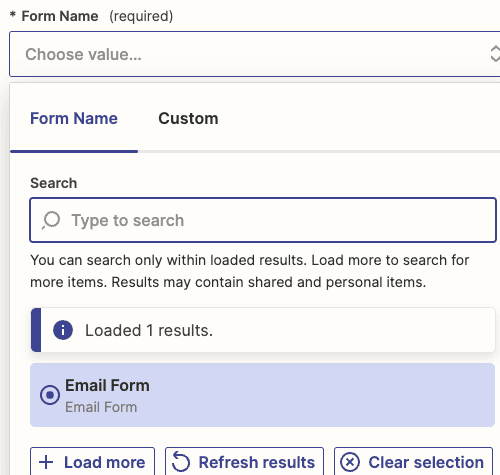
Choose the specific site and form that you want to trigger the Zap.
-
Test the trigger to ensure it captures the correct data from the form.
Step 3: Configure Google Sheets Action
-
Log in to Google Sheets via Zapier.
-
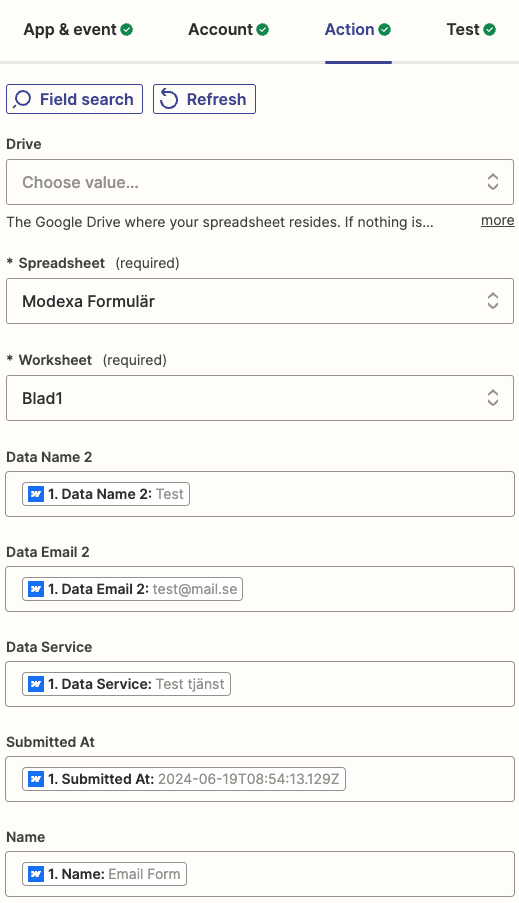
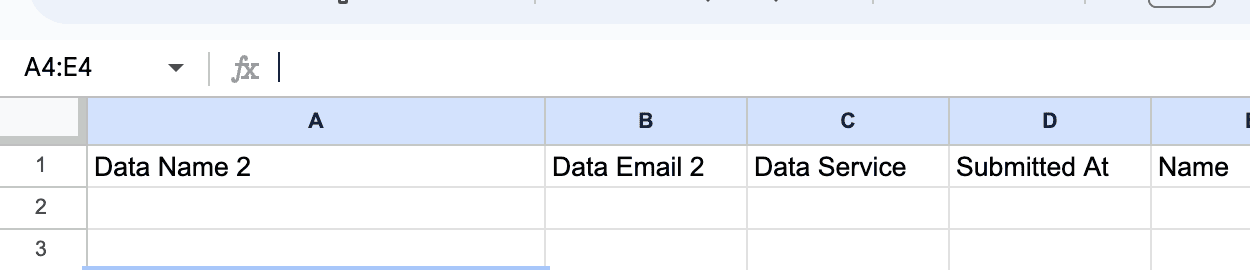
Select the Google Sheet where you want the form data to be inserted.
-
Map the Webflow form fields to the corresponding columns in your Google Sheet.
-
Test the integration to verify that the data is correctly inserted into the spreadsheet.
Final Testing
- Ensure that the form submissions in Webflow are accurately reflected in the Google Sheets.
- Make any necessary adjustments to field mappings or settings based on your initial test results.